How to use our airport lounge service
Find out how to register flights and passengers to access the airport lounge at no extra cost and with complete convenience in case your flight is delayed.Introduction
This tutorial will guide you through the process of adding flights and passengers to the lounge service included in your insurance policy.
You will learn how to
- Add flights;
- Include passengers
- Confirm or cancel registrations.
Quick menu
Access My area
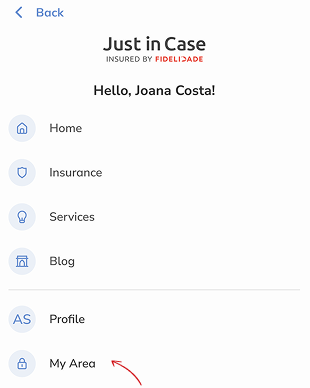
- 1. Log in to the website with your access details.
- 2. Go to the "My Area" section.
Register a Flight
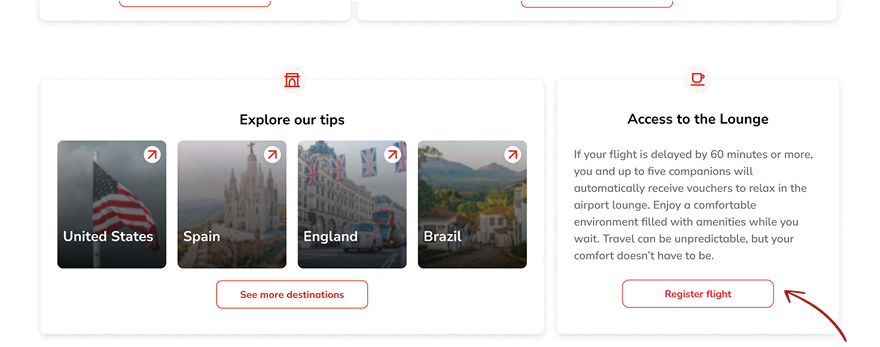
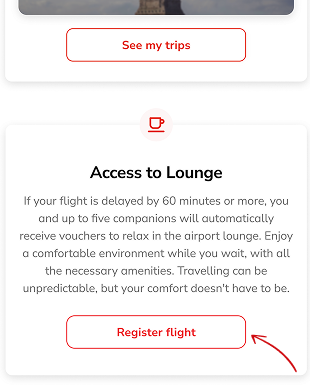
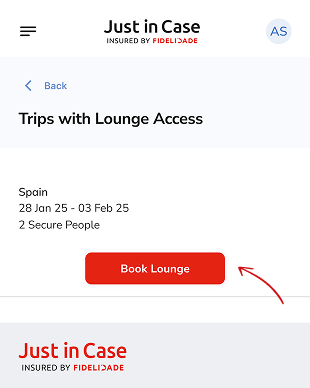
- 1. On the "My Area" page, click on "Register flight".
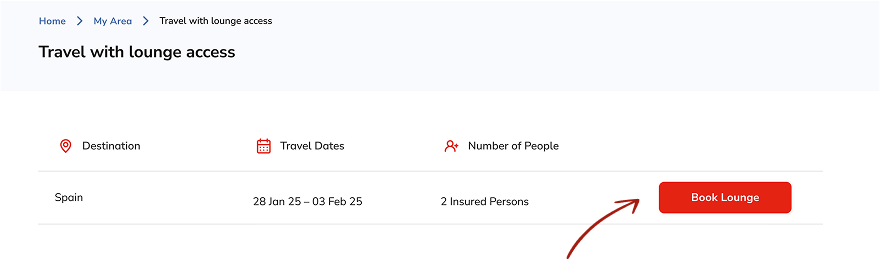
- 2. Now on the next page, click on "Book lounge".
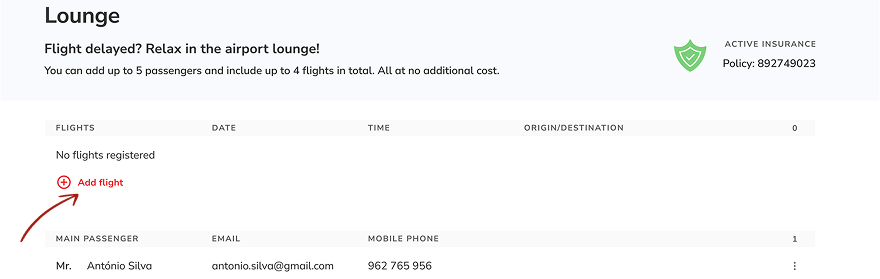
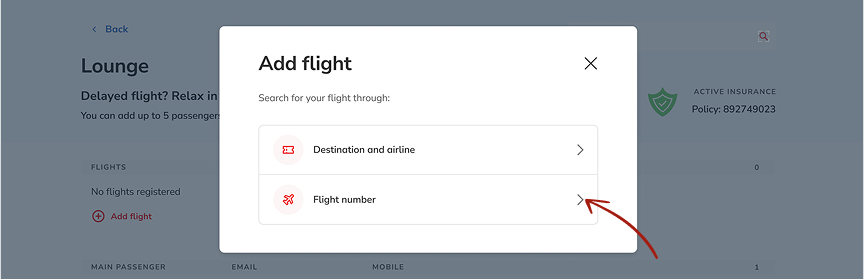
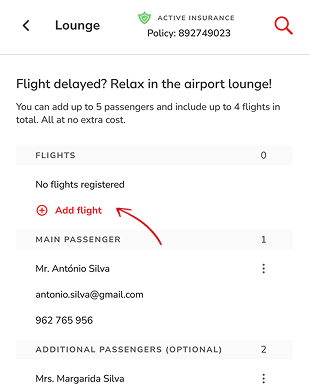
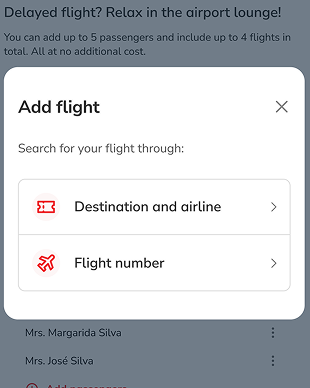
- 3. On the Lounge page, select "Add flight".
Add Flight by Destination and Airline
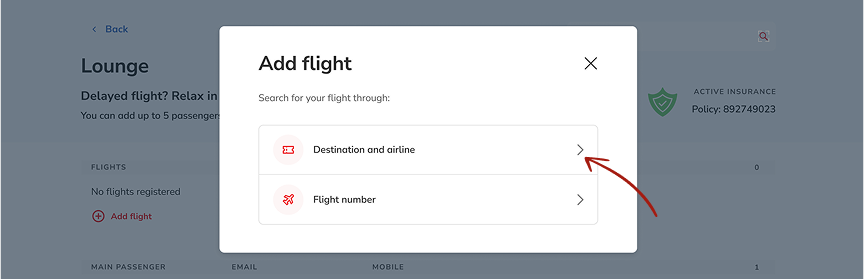
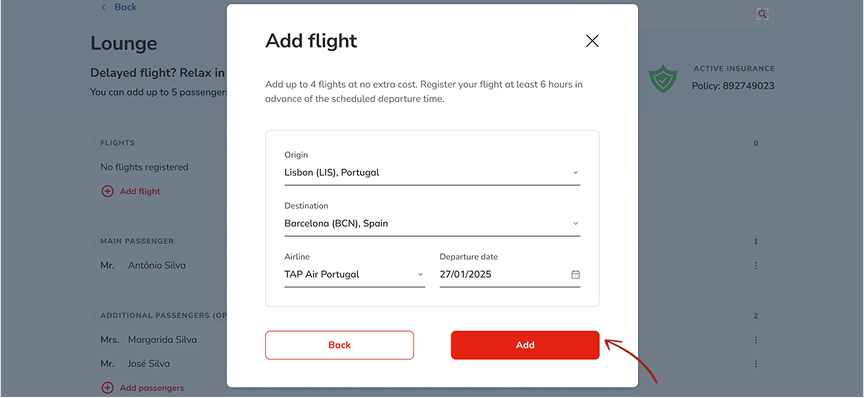
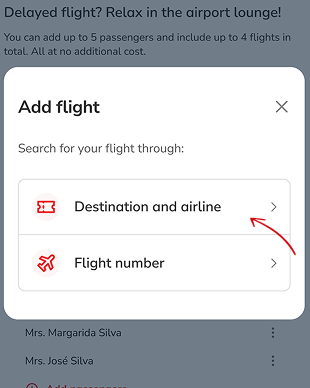
- 1. Select the option "Destination and airline."
- 2. Fill in the following information:
- Origin;
- Destination;
- Departure date.
- 3. Tap "Add" to save.
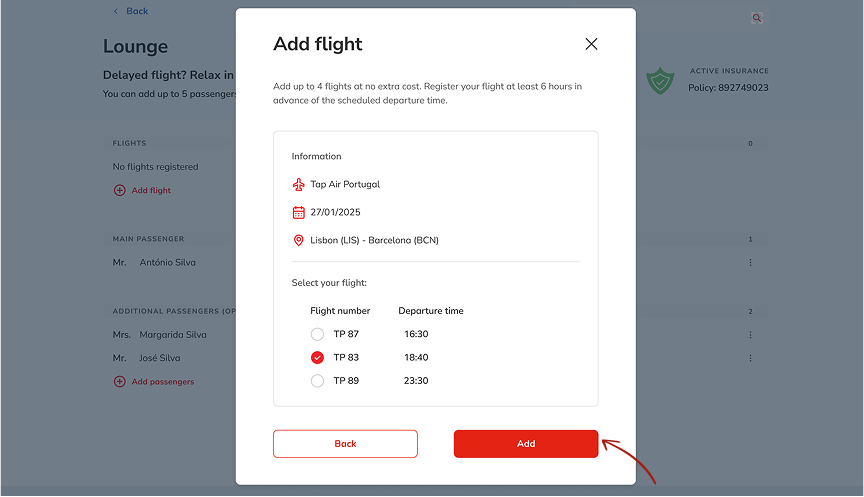
- 4. Confirm the information presented, select the flight time, and tap "Add" again.
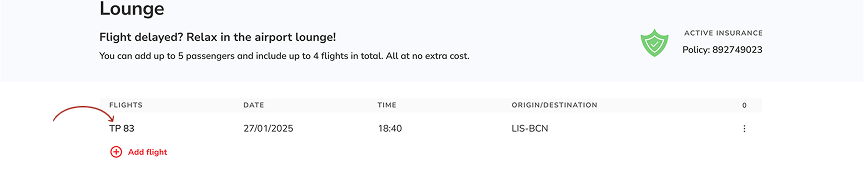
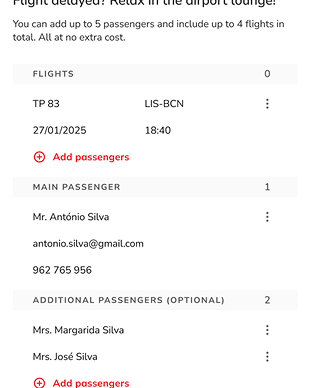
- 5. See that your flight is already listed.
Add Flight by Flight Number
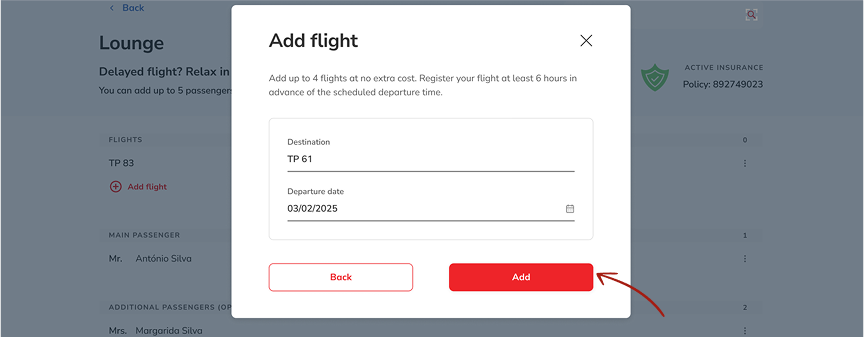
- 1. Select the option "Flight number."
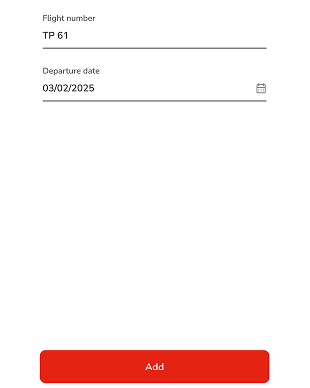
- 2. Fill in the following information:
- Flight number;
- Departure date.
- 3. Tap "Add" to save.
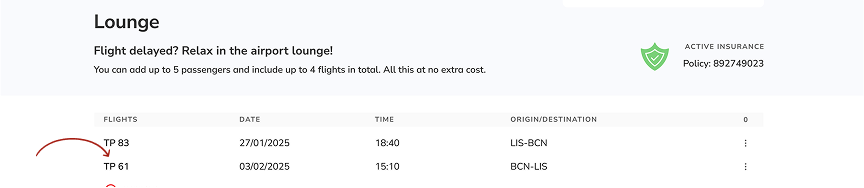
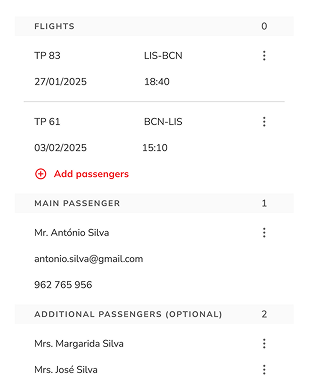
- 4. See that your flight is already listed.
Add Passengers
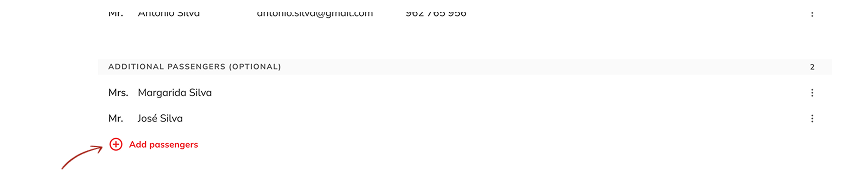
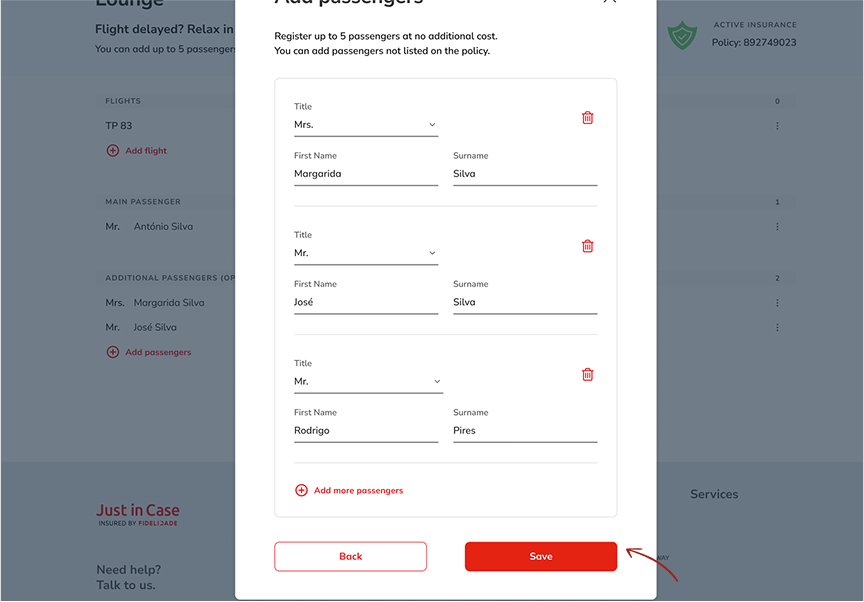
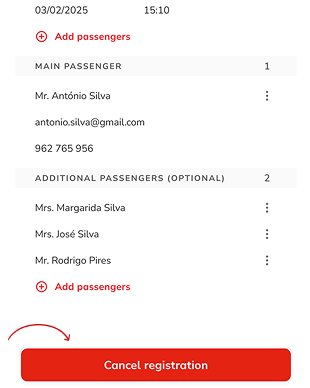
- 1. On the same screen, tap on "Add passengers."
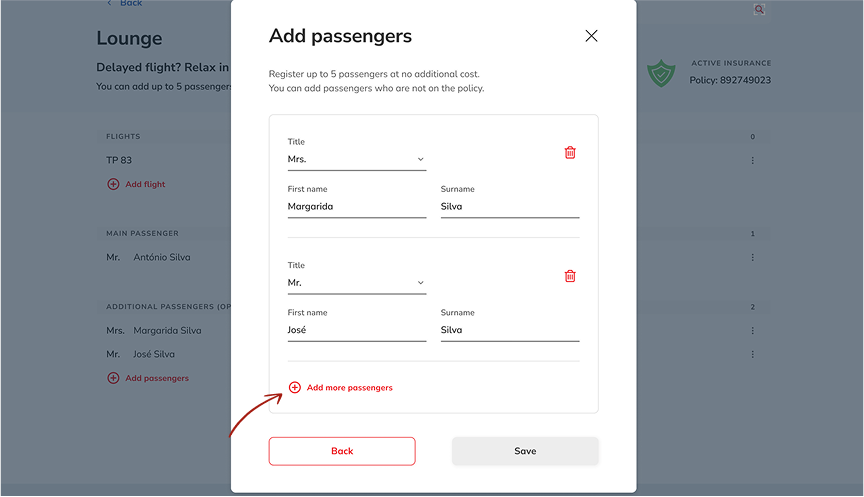
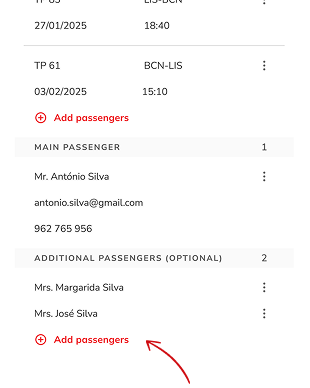
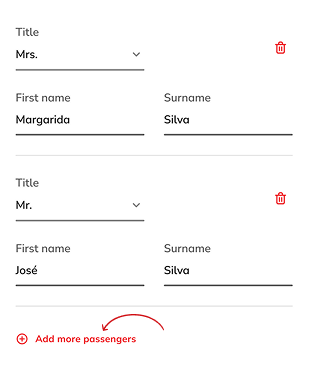
- 2. In the editing session, tap on "Add more passengers."
- 3. Enter the details for each passenger:
- First name;
- Last name.
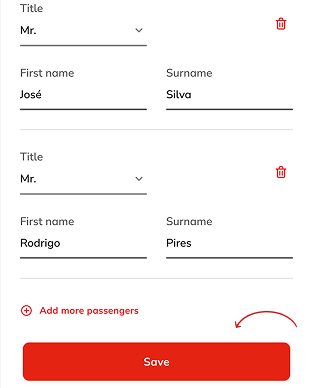
- 4. Tap on "Save" to save or use the trash icon to remove a passenger.
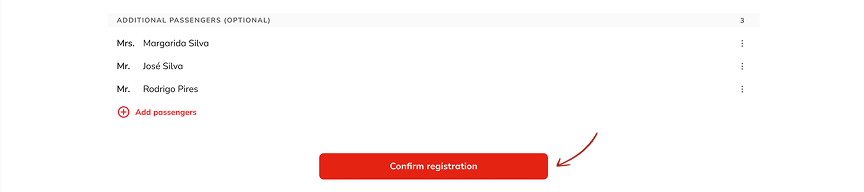
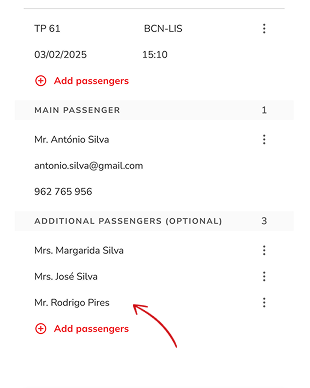
- 5. See that the passenger now appears in the list.
Confirm Registration
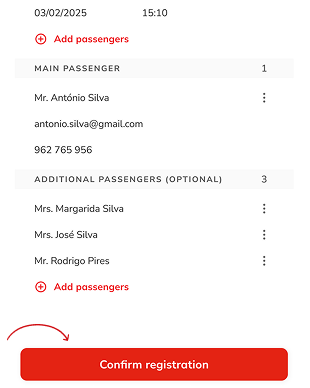
- 1. After adding the flights and passengers, confirm the registration by tapping on "Confirm trip."
- Important note: Once you confirm, it will not be possible to edit the registration. Check all the information before confirming.
View or Cancel Registration
- 1. To view the registrations made, follow the same path from My area.
- 2. To cancel, tap on "Cancel registration.".
- Important note: Completed flights will not be cancelled, and it will not be possible to create a new registration for the same policy. Completed flights or those with a departure date of less than 6 hours will not be cancelled, and it will not be possible to create a new registration for the same policy.
Access My area
- 1. Log in to the website with your access details.
- 2. Go to the "My Area" section.
Register a Flight
- 1. On the "My Area" page, click on "Register flight".
- 2. Now on the next page, click on "Book lounge".
- 3. On the Lounge page, select "Add flight".
Add Flight by Destination and Airline
- 1. Select the option "Destination and airline."
- 2. Fill in the following information:
- Origin;
- Destination;
- Departure date.
- 3. Tap "Add" to save.
- 4. Confirm the information presented, select the flight time, and tap "Add" again.
- 5. See that your flight is already listed.
Add Flight by Flight Number
- 1. Select the option "Flight number."
- 2. Fill in the following information:
- Flight number;
- Departure date.
- 3. Tap "Add" to save.
- 4. See that your flight is already listed.
Add Passengers
- 1. On the same screen, tap on "Add passengers."
- 2. In the editing session, tap on "Add more passengers."
- 3. Enter the details for each passenger:
- First name;
- Last name.
- 4. Tap on "Save" to save or use the trash icon to remove a passenger.
- 5. See that the passenger now appears in the list.
Confirm Registration
- 1. After adding the flights and passengers, confirm the registration by tapping on "Confirm trip."
- Important note: Once you confirm, it will not be possible to edit the registration. Check all the information before confirming.
View or Cancel Registration
- 1. To view the registrations made, follow the same path from My area.
- 2. To cancel, tap on "Cancel registration.".
- Important note: Completed flights will not be cancelled, and it will not be possible to create a new registration for the same policy. Completed flights or those with a departure date of less than 6 hours will not be cancelled, and it will not be possible to create a new registration for the same policy.
Frequently Asked Questions
It is quite simple. To simulate your travel insurance, simply enter the details of your trip. If you want access to all of the application's features, all you need to do is register and enter the details of a trip, indicating the destination and the duration.
All you need to do is enter your mobile phone number, the confirmation code you received via text and accept the General Conditions of Use, as well as the Privacy and Personal Data Protection Policy.
Make sure you have an active Internet connection. If you still can't register, contact us on +351 217 948 780 (national landline).
Any person over 18 (eighteen) and up to 74 (seventy-four) years of age may be a policyholder.
Any person up to the age of 74 (seventy-four) can be an insured person. In the case of Insured Persons under 18 (eighteen) years of age, the policyholder must be of legal age and a member of the household.
Both the policyholder and the Insured Persons must reside in Portugal and have a Portuguese Tax Number (NIF).
Yes, you can take out a Just in Case insurance policy for more than one person, as long as they all belong to the same household. If you're travelling with other family members who are not part of your household, or with friends, they each need their own Just in Case insurance policy.
To take out your Just in Case travel insurance policy, you must be in Portuguese territory (mainland Portugal or the Autonomous Regions of the Azores and Madeira) before you start your trip.
You can take out Just in Case travel insurance for trips of up to one (1) year.
You can pay for your Just in Case travel insurance directly through the app, via MB Way or bank card.
If you need assistance, call the number + 351 214 238 416 (national landline) or request help via the Fidelidade Assistance app, which is free of charge and allows us to locate you quickly and know exactly where you are. Our team is available to help you 24 hours a day, 365 days a year.
If you take out a Just in Case travel insurance to protect you while travelling in Portugal, it includes, among other things, the following assistance coverages (which only apply in the event of an accident):
• Medical video check-up;
• Unlimited emergency transport;
• Extension of stay;
• Rescheduling of the return trip;
• Monitoring of the hospitalised insured person.
If you take out a Just in Case travel insurance to protect you while travelling outside Portugal, it includes a wider range of coverages (which activate in the event of an accident or sudden illness), such as:
• Medical video check-up;
• Medical, pharmaceutical and hospitalisation expenses abroad in the event of an accident or sudden illness;
• Dental expenses abroad in the event of an accident;
• Unlimited emergency transport;
• Delivery of emergency medicines;
• Interpreter in the event of hospitalisation;
• Extension of stay;
• Repatriation or medical transport in the event of an accident or illness;
• Missing flight connections;
• Early return of the insured person;
• Monitoring the hospitalised insured person;
• Loss of identification documents;
• Delivery of personal belongings or documents forgotten abroad;
• Rescheduling of the return trip.
You can check all the coverages included in the General and Special Conditions, as well as in the Pre-Contractual Information.
The Just in Case® Lounge is a service that provides access to the airport lounge if your flight is delayed.
Register your flight with the Just in Case® Lounge before your trip. If the airline announces a delay of 60 minutes or more, you will receive a LoungeKey™ voucher which grants you access to a lounge at the airport where you are.
All policyholders who have taken out Just in Case travel insurance and who have registered their flight at least 6 hours in advance. The benefit is available to the policyholder and a maximum of 5 additional passengers, who may or may not be insured persons but who are on the same flight(s) as the policyholder. The name(s) of the additional passenger(s) must be specified as part of the registered trip and they must be travelling on the same flight as the main policyholder.
Delays are based on reports of delays at the boarding gate of airlines and airports provided by FlightStats (our external flight data tracker). If FlightStats reports an admissible delay, the system will issue the lounge vouchers. A delay is considered admissible whether it concerns a single announcement or as a result of several individual announcements that together reach 60 or more minutes.
FlightStats is able to monitor most flights from the main commercial airlines, but there may be limitations if the companies don't report data regularly. It is not possible to register flights from a company that does not report data: the system will inform you of this fact. You'll have to register departure flights, flight connections and return flights.
You can register the flight at any time after the flight has been booked and no later than 6 hours before departure time.
Yes, registration is only available through the website, which you can access via computer or mobile phone.
Each lounge has its own child admission policy. Check the lounge policies from departing airports in order to confirm whether you should register children. You can find information about the lounges athttps://loungefinder.loungekey.com/Pass. If the lounge doesn't accept children, you needn't register them, as they won't be accepted according to the regulations. If the lounge allows children under two to enter free of charge, you don't need to register them.
Contact our customer support through the number +351 217 948 780 (national landline) or via email to: justincase@fidelidade.pt
You will receive a voucher to access the lounge when the following conditions are met:
• You registered your flight 6 hours prior to departure time.
• The airline has announced a delay that meets or exceeds the admissible delay limit (60 minutes).
• The departure airport where the delay has occurred has a LoungeKey™ lounge available.
• Flights that are cancelled or rescheduled for the following day (24 hours after the flight's scheduled departure time) will not be admissible as delayed and will be dealt with by the airline directly through its own compensation process.
Vouchers will be sent to the email address used to register and to the associated mobile phone number. To access your vouchers, you need a smartphone with a PDF document reader and internet access. Keep in mind that data roaming charges may apply if you use your mobile data service.
The email with the lounge voucher contains instructions on how to locate the lounges available at the airport. There's also a link to the LoungeKey lounge finder in the email you'll receive with your lounge voucher attached. You can click it to check the lounge's details, such as its location and access conditions.
When you are entitled to a lounge pass, the system will notify you via text message, which will included a link to your lounge voucher(s), along with an email containing a PDF attachment. If you have registered travelling companions, you will receive multiple PDF attachments in a single email and text message, with each PDF being a lounge voucher for each passenger. Each PDF contains a LoungeKeyâ„¢ voucher with a unique QR code that grants access to the airport lounges. You can choose to forward the lounge vouchers to your accompanying passengers so that they can access the lounge without you having to be physically present.
Not all airlines disclose flight data on time and with the accuracy required for Just in Case® Lounge to issue lounge access vouchers. As such, Just in Case® Lounge does not allow you to register flights from airlines that do not regularly provide data, in order to ensure the best possible experience for our customers.
The airline must report the information regularly to FlightStats. If the delay is not reported, Just in Case® Lounge will not be able to monitor the flight or issue the voucher.
Contact our customer support through the number +351 217 948 780 (national landline) or by sending an email to: justincase@fidelidade.pt. It may not be possible to issue a voucher immediately, but the team will assess the possibility of issuing a new voucher for future use.
The voucher will only be issued if the airline reports the flight information accurately to FlightStats. If this is not the case, the flight delay may not trigger the voucher to be issued.